Controls on PC, mobile, tablet and console
Play on the biggest screen you have for wave reading, and on a pad if you plan to fight for more than a few minutes.
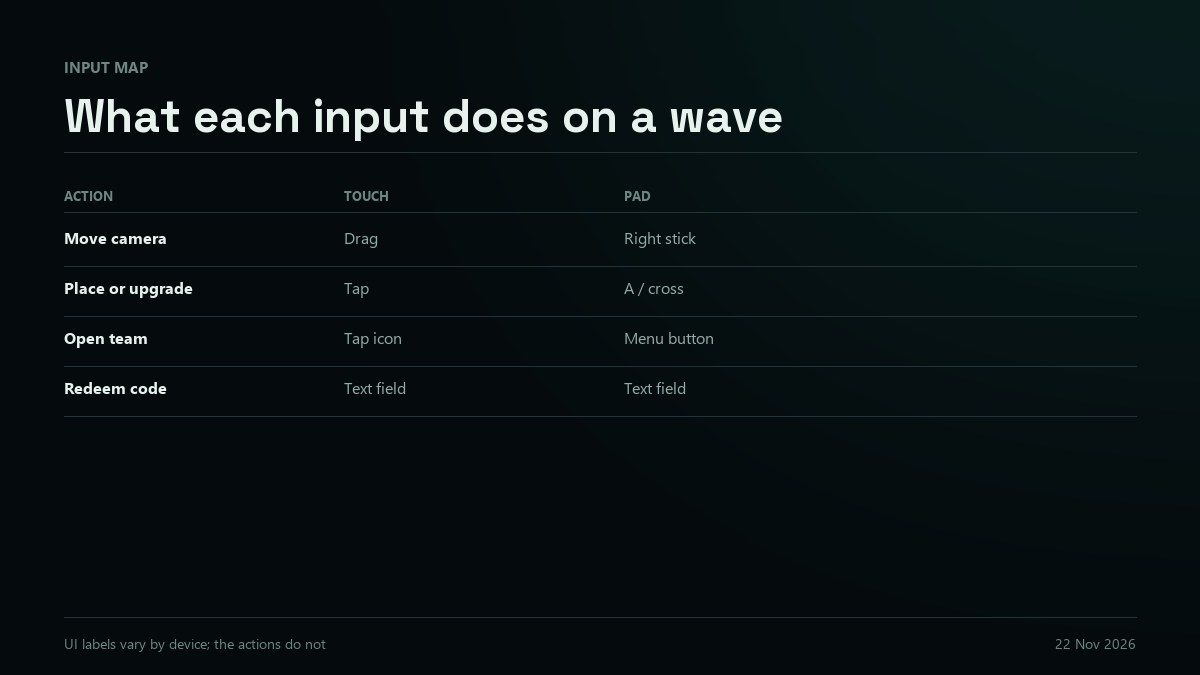
Dragon Arena runs on PC, mobile, tablet and console, and the listing adds full controller support to that list. That spread is wider than most Roblox experiences advertise, and it shapes session setup.
Platforms, as listed
| Device | Named in the listing | Input |
|---|---|---|
| PC | Yes | Keyboard, mouse, controller |
| Mobile | Yes | Touch |
| Tablet | Yes | Touch |
| Console | Yes | Controller |
Full controller support is the phrase the listing uses. In practice that means the whole game should be playable with a pad, not just the movement.
Screen strengths
The device changes more than the graphics. It changes how fast you can read the screen and how long you can comfortably play.
| Screen | Strength | Weakness |
|---|---|---|
| PC | Largest view of the wave and the HUD | Requires sitting down |
| Tablet | Big touch targets, comfortable for long sessions | Less precise than a mouse |
| Phone | Always available for a quick claim | Small text during a wave |
| Console | Pad comfort on a big display | Text entry for codes is slower |
If you only own one device, none of this blocks you. The account is the same, and the loop does not change.
Typing codes
Code redemption needs typed text, and text entry is the one place where device choice matters. A console pad is the slowest way to type FreeSpin, and a phone keyboard autocorrects capital letters if you are not careful.
- On mobile, turn off autocorrect before you type the code.
- On console, use the on-screen keyboard and check the capital F and S.
- On PC, paste rather than type if the field allows it.
The codes page has the exact string and the reason this site lists only one.
Session length
A long wave session is more comfortable on a big screen, and a short claim is faster on a phone. A short claim session is faster on a phone. Players who mix both tend to keep the offline clock running without thinking about it, which is a real advantage in a game with offline fighting.
| Session type | Best device | Why |
|---|---|---|
| First 30 minutes | PC or tablet | Reading the HUD |
| Daily claim | Phone | Speed |
| Boss push | PC | Screen space |
| Offline reset | Any | Two taps |
Controller checks
Full controller support means you can run a wave without touching a keyboard. The things to check on first launch:
- Movement and camera on the sticks.
- A button mapped to the main interaction.
- Menu access without leaving the pad.
- Text fields still reachable when you need them.
If one of those four is missing, the support is partial on your device rather than general, and that is worth knowing before a long session.
Frame rate fixes
No official settings list is published. As a rule, a wave with many mobs is the first place a weak device struggles, so lower the graphics before you lower your expectations.
| Symptom | First setting to try |
|---|---|
| Choppy waves | Graphics quality down |
| Slow menu | Close background apps |
| Long load into the experience | Rejoin from the game page |
| Touch targets missed | Increase UI scale if available |
Progress across devices
Progress follows the Roblox account, so the same dragons appear on every device. It makes the offline loop work: start on PC, claim on a phone, push a boss on a console.
The snapshot page shows the server size the game runs with, which matters if you plan to play with friends on the same server.
Device mistakes
Typing codes with autocorrect on. The capital letters get rewritten.
Playing a boss push on a small phone screen. You lose the HUD detail you need.
Assuming a pad layout is identical everywhere. Check the four items above on your own device.
Ignoring the offline clock. The offline page explains why the hours away matter more than the minutes in a session.
Two settings worth checking first
Before a long session, check the UI scale and the graphics quality. Both live in Roblox's own settings rather than in the game, which is why the game's listing does not mention them.
| Setting | Where it lives | What it fixes |
|---|---|---|
| Graphics quality | Roblox settings | Choppy waves |
| UI scale | Roblox settings | Tiny text on phones |
| Camera sensitivity | Roblox settings | Pad control |
| Volume | Roblox settings | Audio cues |
Verify in game
Start the experience on each device you own and open the same screen: the team view. If the four element symbols and the star tiers read the same way everywhere, your setup is consistent. If a device hides part of the HUD, use that device for claims rather than boss pushes.
Player questions
Is there a Switch or PlayStation version?
The listing names console and full controller support without naming a specific console. This site does not add platform names the game has not published.
Can I use a controller on mobile?
The listing promises full controller support without listing devices. Test your own pad; if it pairs and the four checks pass, it works for you.
Does progress transfer between devices?
Yes, it follows the Roblox account. The same mechanism makes the group egg and the code claim one-per-account.